How to Set Up S/MIME in Gmail and Google Workspace with Qanapi Flow
Gmail can sign and encrypt email with S/MIME, but it is off by default. Turning it on takes only a few minutes in the Google Admin console for an admin. However, after that switch, every user still needs their own certificate, verified, uploaded to Gmail, and replaced when it expires or they leave. Most organizations do this manually and experience a headache of security management. Qanapi Flow manages and automates it for you.
This guide walks through the whole setup in seven steps. Steps 1 to 4 connect Qanapi Flow to your Workspace, with a guided checklist for every Google setting. Step 5 is the certificates, and it is where Qanapi Flow saves the most time: admins assign and manage every user's certificate from one dashboard instead of by hand.
S/MIME does two things: digital signature proves the email came from you and was not changed in transit, while encryption means only the recipient can read the message, not the mail servers it passes through. Both work inside the normal Gmail compose window without plug-ins or separate user log ins.
What you need before you start
- Google Workspace Enterprise Plus. Qanapi Flow runs on Enterprise Plus, which includes the hosted S/MIME and client-side encryption features it builds on (Google Workspace Help). Business editions do not include them.
- Super admin access to the Google Admin console and Google Cloud console. Bundle Setup shows you exactly where each setting lives.
- A Qanapi account for the admin. Only the person setting this up needs one; Step 1 covers the two ways to get it.
- A choice of key model. With hosted S/MIME (Flow Secure Email), Google stores the private keys. With CSE-wrapped S/MIME (Flow Zero Trust and Flow Federal), an external key service holds them, so Google cannot read the keys. See Choose a plan below.
Step 1: Create your Qanapi admin account
Only the admin needs a Qanapi account. The people sending secure email never sign in to Qanapi; they keep working in Gmail. To create an account either contact the Qanapi team through the Secure Email page, where Create Estimate prices your user count, or create an account directly at qanapi.cloud. Flow Federal is the exception: it is always set up with the Qanapi team for security reasons. If you need FedRAMP High security, please reach out to our team.
Step 2: Follow Bundle Setup
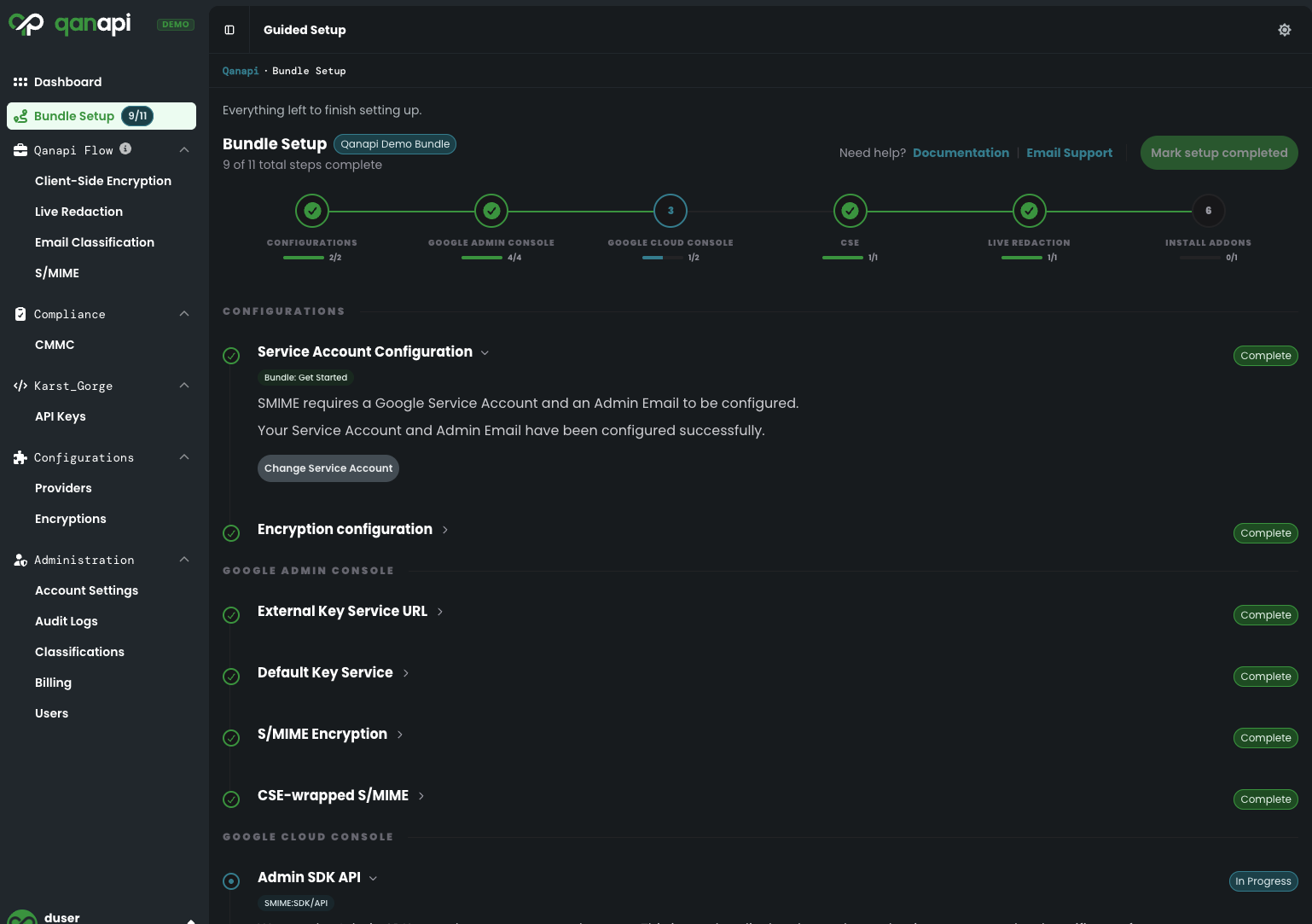
Once you sign in, open Bundle Setup in the left navigation. It is a guided checklist that walks through every setting, tracks your progress, and links straight to the right page in Google for each one. A Verify Configuration button confirms each step worked before you move on.
The checklist covers:
- Configurations: the service account Qanapi uses to connect to Google, and your encryption configuration.
- Google Admin console: turning on S/MIME for your organization. Bundle Setup opens the page and tells you to check both Enable S/MIME encryption for sending and receiving emails and Allow users to upload their own certificates. Zero Trust and Federal plans also set the external key service and CSE-wrapped S/MIME here.
- Google Cloud console: enabling the Admin SDK API, which lets Qanapi list your users and groups, and the Gmail API.
- Add-ons: optional extras, such as client-side encryption sign-in and classifications for Live Redaction.
If you get stuck, Documentation and Email Support links sit at the top of the checklist.
Step 3: Connect your Google organization
Under Configurations, then Providers, add your Google organization as a provider. Enter an admin email and upload the service account JSON file, and Qanapi Flow is connected to your Workspace.
Step 4: Purchase S/MIME licenses
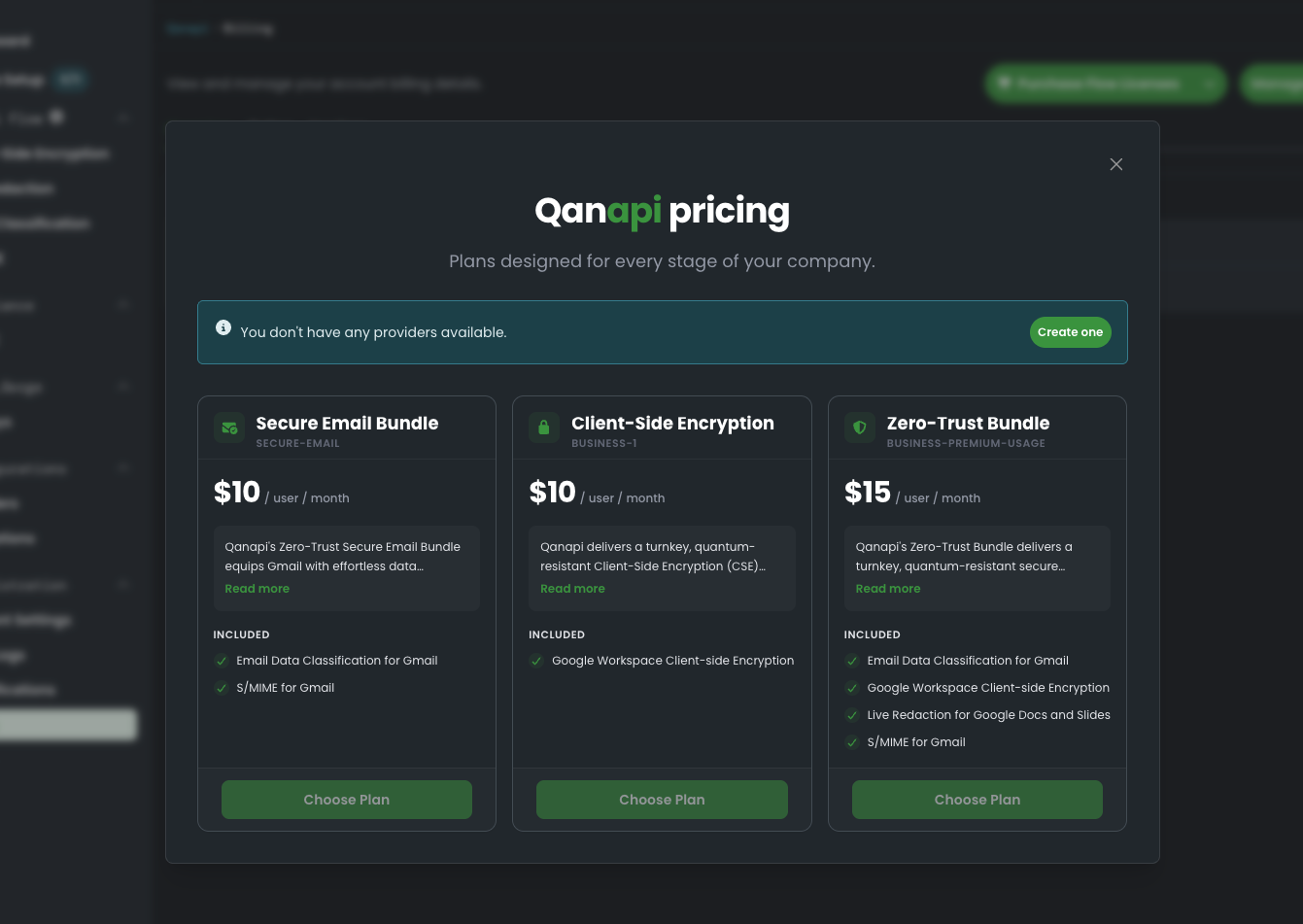
Open S/MIME in the left navigation and click Purchase Flow Licenses. Pay by credit card or through Google Cloud Marketplace, and buy as many licenses as you need. Billing is monthly, so you can add more licenses whenever your team grows.
Step 5: Assign certificates to your users
This is the step that decides whether S/MIME reaches the whole domain or stalls after a pilot. Google turns S/MIME on but leaves every certificate to you. In Qanapi Flow, we simplify it as much as possible:
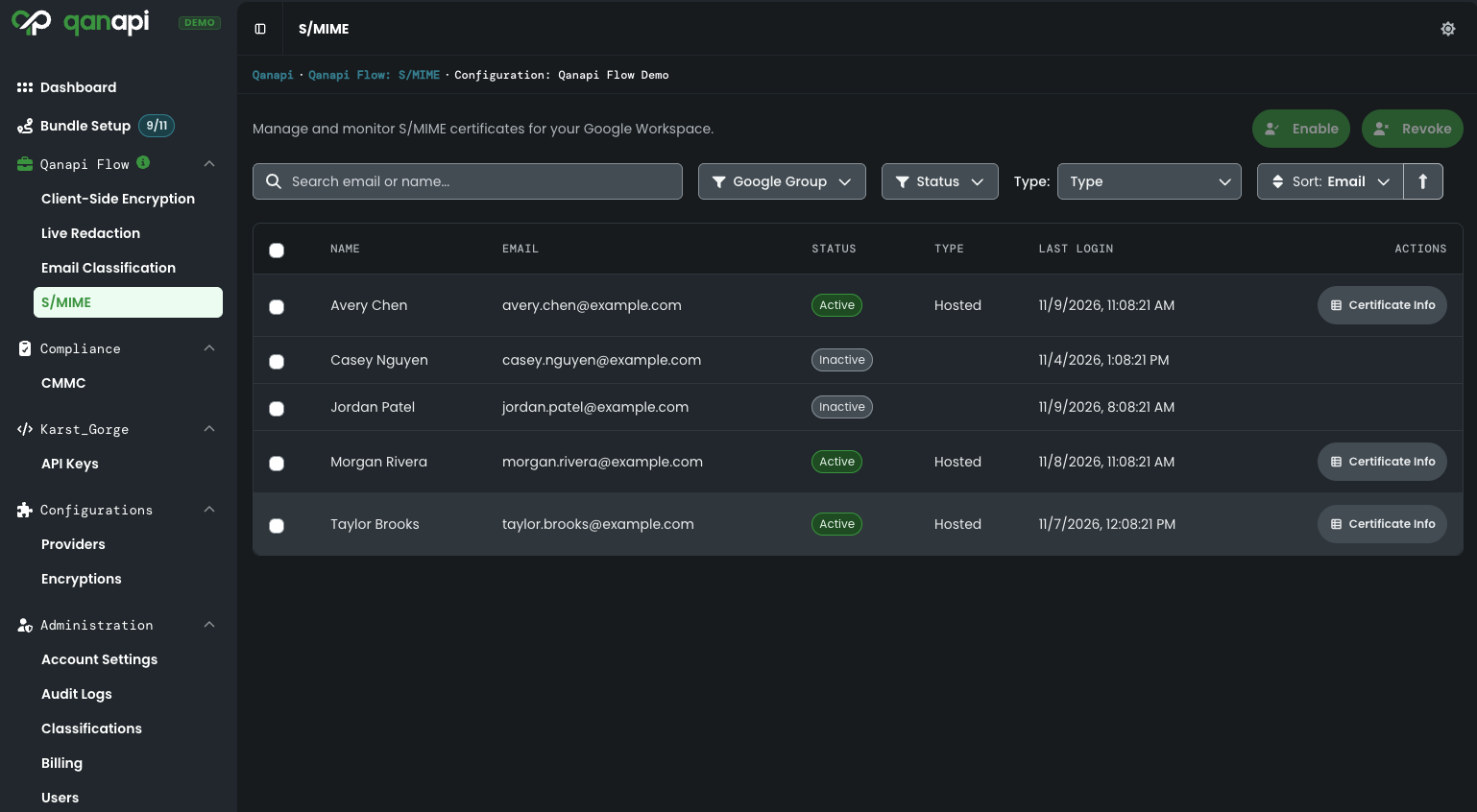
- On the S/MIME page, click Manage on your provider. You see every user, with their status, certificate type and last login.
- Select users one by one, or filter by Google Group to select a whole team, and click Enable.
- Qanapi orders each certificate. Each user gets an email to verify their address and clicks Approve. That is the only thing they do, and no Qanapi account is needed.
- Qanapi uploads the certificate to Gmail, usually within 5 minutes, and the status changes to Active.
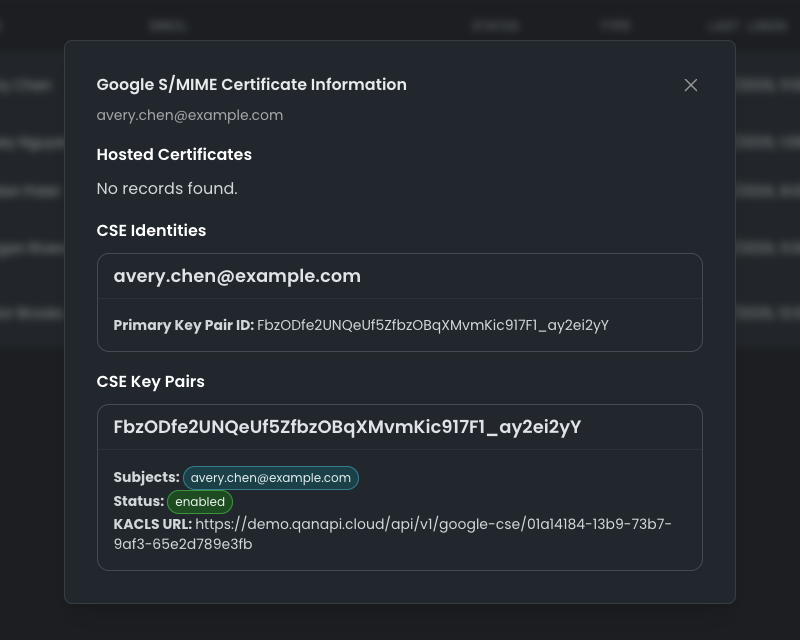
When someone leaves, select them and click Revoke; the certificate comes out of Gmail. To check any user's certificate, click Certificate Info next to their name.
| Task, for every user | By hand | In the Qanapi Flow dashboard |
|---|---|---|
| Ordering | Buy a certificate from a certificate authority | Select users or a Google Group and click Enable |
| Email verification | Chase each user to verify their address | Each user gets an email and clicks Approve |
| Upload to Gmail | Upload each certificate to the right account | Qanapi provisions rapidly |
| Tracking | Keep a spreadsheet of who has what | Live status for every user, from Pending Order to Active |
| New hires and leavers | Repeat the process, revoke by hand | Enable or Revoke from the same list |
| Renewal | Track every expiry date | Qanapi keeps certificates current |
At five users, doing it by hand is an afternoon. At fifty, it becomes a standing task that fails quietly, and a user whose certificate lapsed finds out in the middle of sending something sensitive. The full walkthrough, with troubleshooting, is in the Qanapi S/MIME documentation.
Step 6: Send a signed email
- In Gmail, click Compose.
- Click the lock icon at the top right of the draft.
- Under Digital Signature, choose Sign message.
- Write the email and click Send. The sent message shows a certificate icon under the sender's name.

Step 7: Send an encrypted email
Two people must exchange signed emails first, because that is how Gmail learns each other's public certificate.
- Send a signed email to the recipient, and have them reply with a signed email of their own.
- Reply to their message and click the lock icon.
- Under Additional encryption, click Turn on. Gmail may warn that existing body text will be cleared.
- Write the email and click Send. The sent message shows a green lock for hosted S/MIME or a blue shield for CSE-wrapped S/MIME.
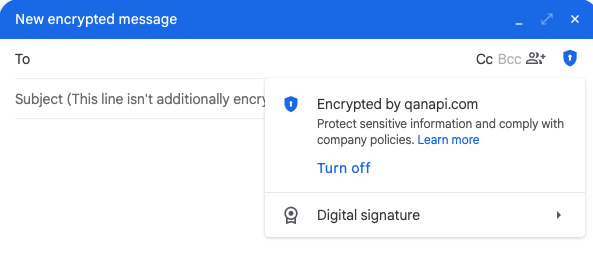
Every later reply in that thread stays encrypted. Recipients do not need separate Qanapi accounts or other apps; any standard S/MIME mail client can read the message.
Choose a plan
Every plan includes Bundle Setup and the Step 5 dashboard. What changes is where the private keys live and which compliance work it supports. All plans bill monthly per license, so you can add users as your team grows.
Frequently asked questions
Is Gmail confidential mode the same as S/MIME?
No. Confidential mode sets an expiry date and blocks forwarding, but it does not encrypt the message end to end. S/MIME signs and encrypts the message itself. For every option side by side, see Gmail encryption options compared.
Does S/MIME work on Google Workspace Business editions?
Not today. Qanapi Flow runs on Google Workspace Enterprise Plus, and Business editions do not include S/MIME.
Do recipients need special software?
No. S/MIME is a standard. Once two people exchange signed emails, encrypted replies work between any S/MIME-capable mail clients.
What is the difference between a green lock and a blue shield?
A green lock means hosted S/MIME, where Google stores the private keys. A blue shield means CSE-wrapped S/MIME, where an external key service holds them and Google cannot read them.
Is there a free trial?
No. Each license provisions a real certificate for a real user, so it is a purchase. You can start with a small group and add users from the same console. If you are a federal customer looking for a more unique use case, please reach out to our team and we will set up testing options.
Can I add users later?
Yes. Licenses bill monthly, so you buy what you need today and add more from the S/MIME page whenever your team grows.
See what it costs for your team
Enter your user count and get pricing for Secure Email and Zero Trust in seconds: Create an estimate and our team will follow up. Ready to start now? Create an account at qanapi.cloud and Bundle Setup will walk you through the rest. Prefer to see it first? Book a walkthrough of S/MIME working inside Gmail. Flow Federal is set up with our team.